How to Print ID Cards at Home: The Complete Professional Guide
Are you wondering how to print ID cards at home with professional quality? Whether you need to create a custom employee badge, a school project, or a replacement ID, the process can be tricky. The biggest challenge is getting the front and back sides perfectly aligned on a single A4 sheet. All Tool PDF provides a specialized, free online tool designed to make ID card printing simple, fast, and perfectly aligned without needing expensive software.
How to Print Student ID Cards and School IDs Perfectly
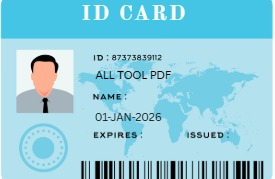
Printing student ID cards requires precision to ensure the photo and details are crisp. Most home printers don't have a "dual-side" mode for small cards, which often leads to wasted paper. Our tool solves this by using a Mirror Alignment system. Once you upload your photo ID cards, the system calculates the exact coordinates so that when you flip the paper for the second pass, the back side lands exactly where it should.
Printing Plastic ID Cards (CR80 Standard) Using A4 Paper
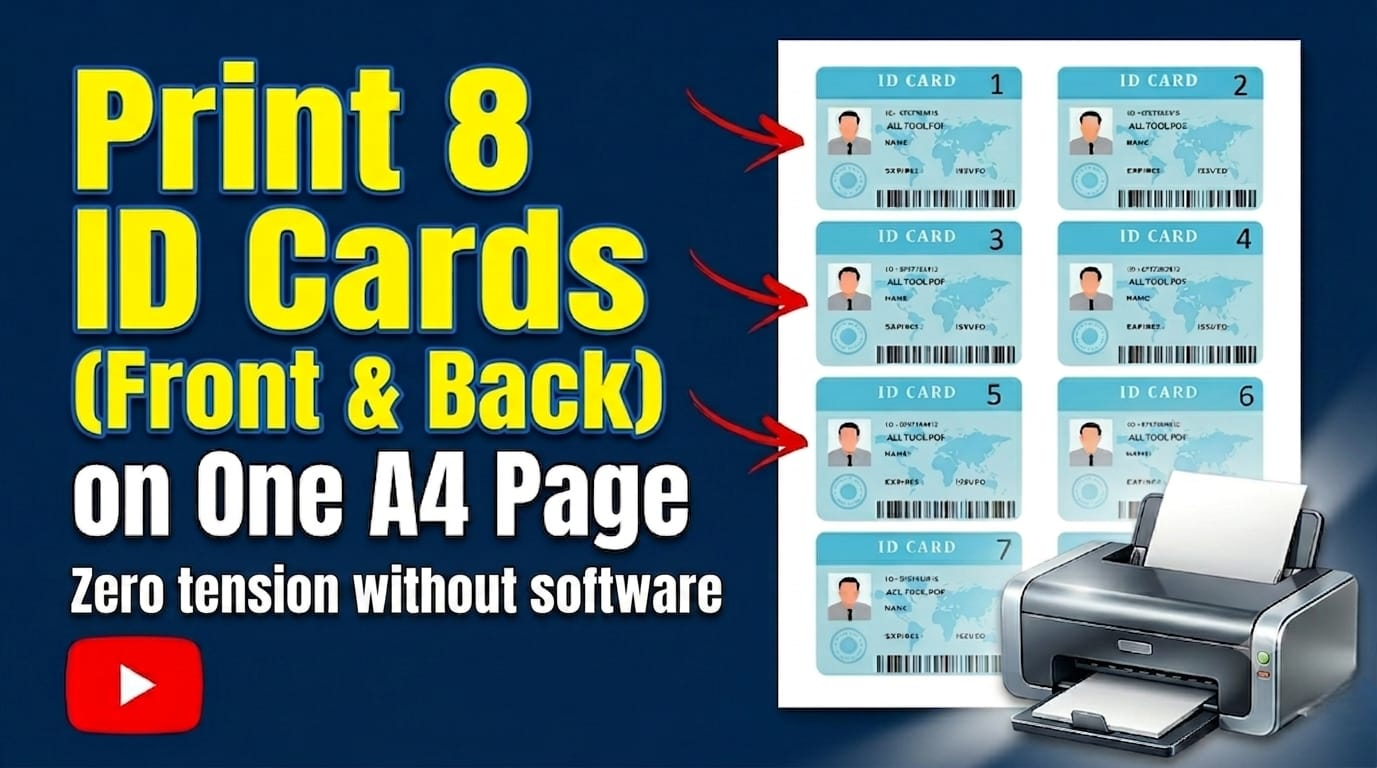
If you want to know how to print a plastic ID card using a standard home printer, the secret is in the dimensions. Standard ID cards (CR80) are 85.60mm x 53.98mm. Our tool automatically crops your images to this exact ratio. You can print multiple cards on one A4 page, then simply cut them out and laminate them for a professional, durable finish.
Core Features for Perfect ID Printing
- Precision Auto-Cropping: Instantly standardize your images to the professional CR80 ratio.
- Magic Scan (Brightness Tool): Fix dark or low-contrast scans in real-time before printing.
- Batch Management: Upload up to 8 different cards and set custom copy counts for each.
- Dual Layouts: Switch between Horizontal (8 cards/page) and Vertical (6 cards/page) modes.
- Privacy First: All processing happens locally in your browser. Your sensitive ID data never leaves your computer.
Step-by-Step: How to Print ID Cards at Home
- Upload Images: Click "Add New Card" and upload your front-side image.
- Crop & Brighten: Use the cropping handles to align the card. If the image is dark, use "Magic Scan" to brighten it. Click "Crop & Save."
- Complete the Set: Repeat the process for the back-side image.
- Choose Layout: Select either Horizontal or Vertical print layout depending on your needs.
- Print Fronts (Step 1): Place A4 paper in the printer and click "Step 1: Print Fronts."
- Print Backs (Step 2): Flip the paper according to your printer's manual and click "Step 2: Print Backs." The tool automatically reverses the order for a perfect match.
Frequently Asked Questions
Got questions? We've got answers.